When you've decided Linux isn't for you anymore, figuring out how to uninstall GRUB properly matters more than most guides let on. Treat it carelessly and you'll be staring at a black screen the next time you power on, with no Windows login in sight and a command prompt you never asked for.
The reason it bites so many people is that GRUB takes control of the boot process during Linux installation, and ripping it out involves different steps depending on whether your system uses modern UEFI firmware or older Legacy BIOS. The EFI System Partition alone is typically just 100 to 512 MB, but it holds every bootloader your machine knows about, including GRUB and Windows Boot Manager side by side. Getting this right means checking your setup first, then following the correct removal path for your firmware type.
Quick Answer
If you need to know how to uninstall grub, first check whether your system boots in UEFI or Legacy mode. On UEFI systems, delete GRUB's .efi files from the EFI System Partition and remove its NVRAM boot entry. On Legacy systems, overwrite the Master Boot Record with bootrec /fixmbr from Windows Recovery.
Then rebuild the Windows Boot Configuration Data to ensure your PC starts Windows directly instead of loading GRUB.
Why Removing GRUB Can Break Your Boot (And How to Avoid It)
GRUB (Grand Unified Bootloader) is what Linux distributions install to handle startup. When you dual boot, GRUB typically takes over as the main bootloader. It sits between your firmware and your operating systems, presenting that menu where you pick Windows or Linux.
Here's where it gets risky. On a UEFI system, GRUB lives as a small executable file on the EFI System Partition, and your firmware keeps a list of boot entries in NVRAM. Delete the Linux partitions without cleaning up GRUB's entry, and your firmware still tries to launch a file that no longer exists.
Result: a grub_rescue> prompt or a black screen.
On a Legacy system, GRUB's core image embeds itself in the Master Boot Record, the first sector of your disk. If you just delete the Linux partitions, the MBR still points to code that's gone. The fix there is overwriting the MBR with Windows' own boot code, which most people forget to do.
The pattern is clear enough. Identify your firmware type, clean up GRUB in the right place, then restore control to Windows Boot Manager. Skip that order and you'll spend your evening recovery-flashing Windows from a USB stick.
What NOT to do first
So many guides lead with "delete the Linux partitions." Don't. If you wipe those before fixing the bootloader, you remove the very files your system is trying to load on startup. Instead, follow this order:
- Fix the bootloader first (UEFI or Legacy method below).
- Verify Windows boots successfully on its own.
- Then delete the Linux partitions and reclaim the disk space.
Breaking this sequence is the number one reason people end up with an unbootable machine.
First, Figure Out How Your System Boots: UEFI or Legacy BIOS
Before you touch anything, you need to know which firmware mode your system is running. The removal process is fundamentally different for each, and using the wrong method won't fix the problem.
How to check your boot mode without guessing
If you can boot into Windows, the fastest way is through System Information:
- Press Win + R, type
msinfo32, and press Enter. - Look for "BIOS Mode" in the right pane.
- If it says UEFI, follow the EFI path below.
- If it says Legacy, follow the MBR path.
Per manufacturer documentation, any PC built roughly after 2012 with Windows 8 or later very likely runs in UEFI mode. If you're working with an older machine or one that was manually set to Legacy/CSM mode, the MBR method is your path.
If you can't boot into Windows at all because GRUB is already broken, you have another option. Boot from a Windows installation USB, get to the command prompt (Shift+F10 at the install screen), and check the disk layout:
diskpart
list disk
A UEFI system will show a disk formatted as GPT, usually with a small FAT32 partition (the EFI System Partition) of 100-500 MB. A Legacy system will show the disk as MBR with no FAT32 system partition. That single check tells you which removal path to follow.
Remove GRUB the Right Way on UEFI Systems
This is the most common scenario in 2025. UEFI systems handle bootloaders as independent files on the EFI System Partition, and your firmware references them through NVRAM boot entries.
Image source: Bing (Web (fair-use with source credit))
Locating and cleaning the EFI System Partition
The EFI System Partition is a small, hidden FAT32 partition that Windows hides by default. It won't show up in File Explorer with a drive letter. To access it, open Command Prompt as Administrator:
diskpart
list disk
select disk 0
list partition
Look for a small partition, typically 100 to 500 MB, labeled "System." Assign it a drive letter so you can see what's inside:
select partition X   (replace X with the ESP partition number)
assign letter=Z
exit
Now navigate to it. The EFI partition contains a folder structure like Z:\EFI\. Inside, you'll typically see subfolders for each installed bootloader: Microsoft, Boot, and the Linux distribution's name (like ubuntu, fedora, or debian).
Your task is to remove the Linux distribution's subfolder while leaving Microsoft and Boot untouched.
cd /d Z:\EFI
dir
You'll spot the Linux folder. For Ubuntu, it's ubuntu. Delete it:
rmdir /s Z:\EFI\ubuntu
Repeat for whatever Linux distribution folder you see. Do not delete the Microsoft or Boot folders, because those contain Windows Boot Manager and the fallback bootloader.
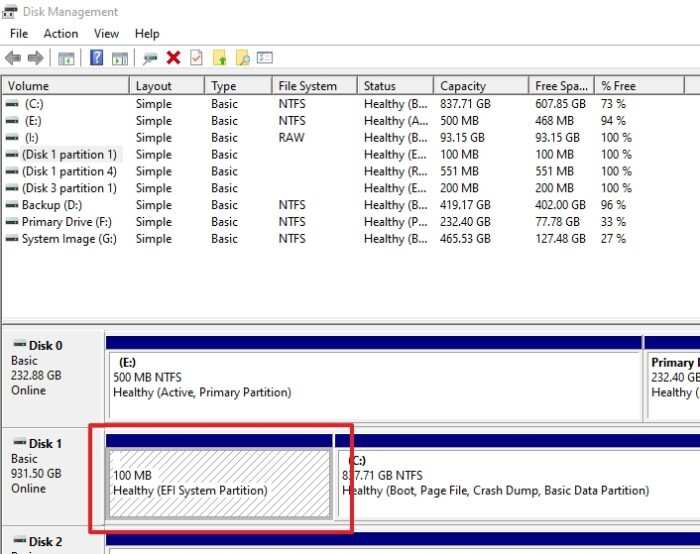
Image source: Bing (Web (fair-use with source credit))
After removing GRUB's folder, unmount the drive letter to keep things clean:
diskpart
select volume Z
remove letter=Z
exit
Removing GRUB's NVRAM boot entry with efibootmgr or Windows tools
Even after deleting GRUB's files, your firmware still has a boot entry pointing to them. Left alone, this entry fails at startup and can throw you into a recovery screen. You need to remove it from NVRAM.
From Linux (if you can still boot into it)
Open a terminal and install efibootmgr if it's not already there:
sudo apt install efibootmgr
sudo efibootmgr
You'll see a list of boot entries with numbers like Boot0001* ubuntu and Boot0002* Windows Boot Manager. Note the four-digit number after Boot for the Linux entry. Then:
sudo efibootmgr -b 0001 -B
Replace 0001 with whatever number corresponds to the Linux/GRUB entry. Verify it's gone by running efibootmgr again.
From Windows
Windows doesn't have a direct equivalent to efibootmgr built in, but you can use the built-in bcdedit or third-party tools. Open Command Prompt as Administrator:
bcdedit /enum firmware
Look for an entry with a description like "ubuntu" or the Linux distro name. Note its identifier. Then delete it:
bcdedit /delete {identifier-here}
Replace {identifier-here} with the actual GUID you saw in the previous command's output. Some firmware entries may resist deletion through bcdedit alone. In that case, you can disable the entry instead:
bcdedit /set {identifier} bootdisposition 0
Reboot and enter your firmware settings (usually by pressing F2, Del, or F12 during startup). In the boot priority menu, remove or demote any GRUB/Windows Boot Manager entries that still point to the removed files. Some UEFI firmware interfaces let you delete stale boot entries directly from a boot manager list.
Restoring Windows Boot Manager as the default
After removing GRUB's files and NVRAM entry, set Windows Boot Manager as the primary boot option. From a Windows Command Prompt (Admin):
bcdboot C:\Windows /s Z: /f UEFI
This reconstructs the Windows bootloader files on the ESP using the UEFI target. If you don't have the ESP mounted with a drive letter, mount it first using the diskpart steps from earlier (using Z: as the letter). Then verify Windows is set as the default:
bcdedit /set {bootmgr} displayorder {current}
Reboot. If you've done everything correctly, Windows should start directly without ever showing a GRUB menu.
Remove GRUB the Right Way on Legacy/MBR Systems
Legacy BIOS systems handle booting differently. There's no EFI partition. Instead, the firmware reads the very first sector of the boot disk, the Master Boot Record, which contains boot code and the partition table.
GRUB embeds its first-stage bootloader there, chainloading the rest from the Linux partition.
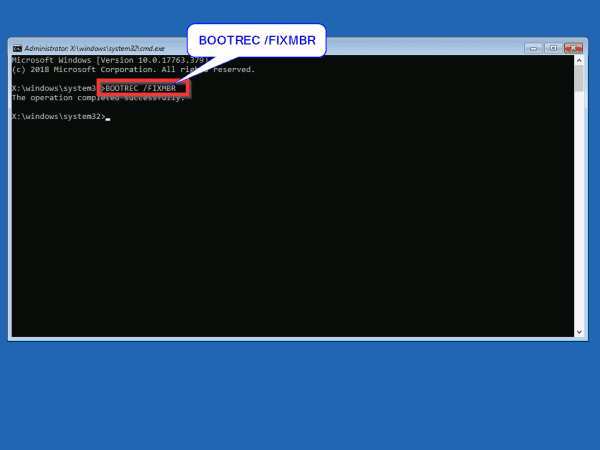
Image source: Bing (Web (fair-use with source credit))
Overwriting the Master Boot Record with Windows boot code
You'll need a Windows installation USB or recovery drive for this. Boot from it, get to the command prompt (Shift+F10 on the install screen or through Troubleshoot > Advanced Options > Command Prompt), then run:
bootrec /fixmbr
This overwrites the MBR's boot code with the Windows version. It does not touch your partition table, so your data stays intact. The disk will now boot straight into Windows Boot Manager instead of loading GRUB.
After /fixmbr, run the companion commands in order:
bootrec /fixboot
bootrec /rebuildbcd
/fixbootwrites a new boot sector to the system partition./rebuildbcdscans for Windows installations and rebuilds the Boot Configuration Data store.
Per Microsoft documentation, /fixboot can occasionally return "Access is denied." If that happens, try assigning a drive letter to the system partition first, or use the diskpart approach to ensure you're targeting the right volume.
Using bootrec commands from Windows Recovery
If you can't boot a Windows USB, there's another path. Hold Shift while clicking Restart in Windows (or interrupt boot three times by powering off during the Windows logo). This triggers the Windows Recovery Environment.
Navigate to Troubleshoot > Advanced Options > Command Prompt.
From there, run the same bootrec commands in the same order. The process takes under a minute once you're in the right prompt. After it finishes, type exit, remove the recovery media if applicable, and restart.
The machine should boot straight into Windows.
Delete Linux Partitions Only After You've Fixed the Bootloader
This section matters because the timing is everything. Only after you've verified Windows boots cleanly, without GRUB, should you touch the Linux partitions.
Why partition cleanup comes last, not first
Think of it like this: if you delete the Linux partitions first, you may remove GRUB's configuration files or even the bootloader's second-stage components before you've redirected the firmware. On a Legacy system, the MBR still points into those partitions. Remove them and you're stuck at grub rescue> with no way to recover from within Windows.
Confirm your success by rebooting a few times. Make sure Windows reaches the login screen without any menu, without the blue recovery screen, and without a grub> prompt. Once you're certain, open Disk Management (diskmgmt.msc).
You'll see partitions without drive letters that used to be Linux: typically a root partition (ext4, no letter in Windows), a swap partition, and sometimes a separate /home partition. Right-click each select "Delete Volume." The space becomes "Unallocated." Then extend your Windows partition into it or create a new volume for data.
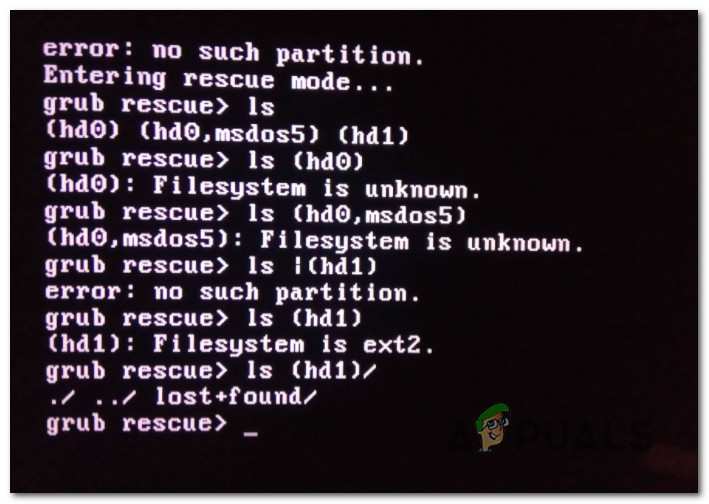
Image source: Bing (Web (fair-use with source credit))
Common Mistakes That Leave You Stuck at a GRUB Rescue Prompt
Deleting the wrong EFI file
The EFI System Partition contains files for multiple bootloaders in the \EFI\ folder. Deleting the entire EFI folder on the ESP removes Windows Boot Manager along with GRUB. That turns your system into one that can't boot anything until you recovery-flash Windows.
Only delete the Linux vendor folder (e.g., ubuntu, fedora, debian). Leave Microsoft and Boot folders alone.
Skipping the boot mode check
Running bootrec /fixmbr on a UEFI system does nothing useful, because UEFI doesn't boot from the MBR. It reads the NVRAM entries and the ESP files. Similarly, deleting ESP entries on a Legacy system is pointless because there is no ESP.
That single check, UEFI vs Legacy, determines every step that follows. Skip it and you'll be applying the wrong fix to the wrong problem.
Forgetting to rebuild the BCD store
After overwriting the MBR or cleaning the ESP, some systems still fail to load Windows because the Boot Configuration Data points to the wrong disk or partition identifier. Running bootrec /rebuildbcd or bcdboot forces Windows to rewrite these pointers. Don't skip it even if the first reboot seems fine.
The second or third reboot is often when a broken BCD reveals itself.
What to Install or Set Up After GRUB Is Gone
Restoring a clean single-OS boot configuration
After removing GRUB's files and NVRAM entries, your firmware's boot menu may still list a "ubuntu" or "Linux" entry that fails when selected. Enter your firmware setup (F2, Del, F12, or Esc at startup depending on the manufacturer) and check the Boot Priority or Boot Order screen. Delete any leftover GRUB/USB/DVD entries.
Ensure "Windows Boot Manager" is at the top of the boot order.
Some firmware interfaces, particularly from vendors like Dell, Lenovo, and ASUS, include a separate "Boot Option Priorities" section where you can add or remove entries directly. This is often the cleanest way to remove a stubborn NVRAM entry that bcdedit couldn't touch.
Reclaiming disk space safely
Once Windows boots cleanly after two or three restarts, it's safe to reclaim the Linux disk space. Open Disk Management, look for unallocated space (formerly Linux partitions), and either extend an existing Windows partition into it or create a new NTFS volume. Use the normal Windows formatting tools.
Don't try to format or mount Linux filesystems from Windows without proper drivers, because ext4 partitions won't be readable by default.
Real-World Scenarios: When You'd Need to Remove GRUB
Selling a dual-boot machine
If you're selling a laptop that had Linux installed alongside Windows, leaving GRUB in place creates chaos for the buyer. They get the GRUB menu, might not know what Linux is, and may assume the machine is broken. Follow the UEFI or Legacy cleanup path above, let Windows boot directly, then do a Windows Reset to factory-clean the system with no Linux leftovers.
Recovering from a failed Linux install
Sometimes the Linux installation process writes GRUB before you've saved anything to the new partition, and a crash or power loss leaves you with a half-installed system and a broken bootloader. In that case, you're already at grub rescue> or the firmware won't find a valid OS. Boot from Windows installation media and run the Legacy bootrec or ESP repair steps as appropriate.
Corporate IT re-imaging
IT departments managing fleets sometimes encounter employee-installed Linux partitions on company hardware. Removing GRUB programmatically across machines typically involves scripting the diskpart and bcdboot commands shown above, wrapped in a deployment tool like MDT or SCCM, so each machine reboots cleanly into Windows without interactive input.
Quick Troubleshooting If Something Goes Wrong
System won't boot after GRUB removal
Boot from Windows installation media, get to the command prompt, and rebuild the BCD:
bcdboot C:\Windows /s S: /f ALL
(Replace S: with the drive letter of your EFI or system partition. Use /f ALL to write both UEFI and Legacy boot files.)
GRUB still appears in BIOS boot menu
The NVRAM entry survived your cleanup. Enter firmware setup and manually delete it from the boot priority list. Alternatively, from Windows:
bcdedit /enum firmware
Look for the stubborn entry, note its GUID, and run:
bcdedit /delete {GUID} /cleanup
The /cleanup flag forces removal of display-order references, which is often why the entry persists.
Windows Boot Manager missing from firmware
If the ESP was accidentally wiped or corrupted, bcdboot reinstalls it. Mount the ESP, then run:
bcdboot C:\Windows /s Z: /f UEFI
This recreates the \EFI\Microsoft\Boot\ folder structure and bootmgfw.efi on the partition. Reboot and the Windows Boot Manager entry reappears in the firmware menu.
Frequently Asked Questions
Is it safe to just delete the EFI partition?
No. The EFI System Partition (ESP) holds bootloader files for every operating system installed, including Windows. Deleting it removes Windows Boot Manager too, leaving the machine unbootable.
Only delete the Linux distribution's subfolder inside \EFI\, not the whole partition.
Will removing GRUB delete my files?
Removing GRUB itself does not touch your personal files. It only removes bootloader files and NVRAM entries. However, if you later delete the Linux partitions, files stored on those partitions are gone.
Back up anything important before partition cleanup.
Can I reinstall GRUB if I change my mind?
Yes. Boot from a Linux installation USB, chroot into your Linux installation, and run grub-install followed by update-grub. The bootloader is replaceable in either direction, which is why backing up the ESP before starting is a sensible precaution.
What if GRUB appears after removing Linux dual boot?
The NVRAM entry still points to GRUB's files, or the MBR still contains GRUB's boot code. Run bootrec /fixmbr (Legacy) or delete the leftover \EFI\github grub folder and NVRAM entry (UEFI). After that, rebuild the BCD store with bootrec /rebuildbcd.
How do I remove GRUB without installation media?
For UEFI, use Linux terminal commands (efibootmgr) if Linux still boots. If Windows still boots, use bcdedit to edit NVRAM entries. If neither OS boots, you'll need installation media because no recovery environment exists on disk.
Why Removing GRUB Can Break Your Boot (Recap for Clarity)
If you jumped straight here, remember the order matters more than any single command. Bootloader first, partitions second. Get that backwards and you'll be pulling out your hair in a live USB recovery session.
First, Figure Out How Your System Boots: UEFI or Legacy BIOS (Recap)
Windows' msinfo32 output is the fastest path to certainty. No guesswork required. One check saves you from running the wrong commands entirely.