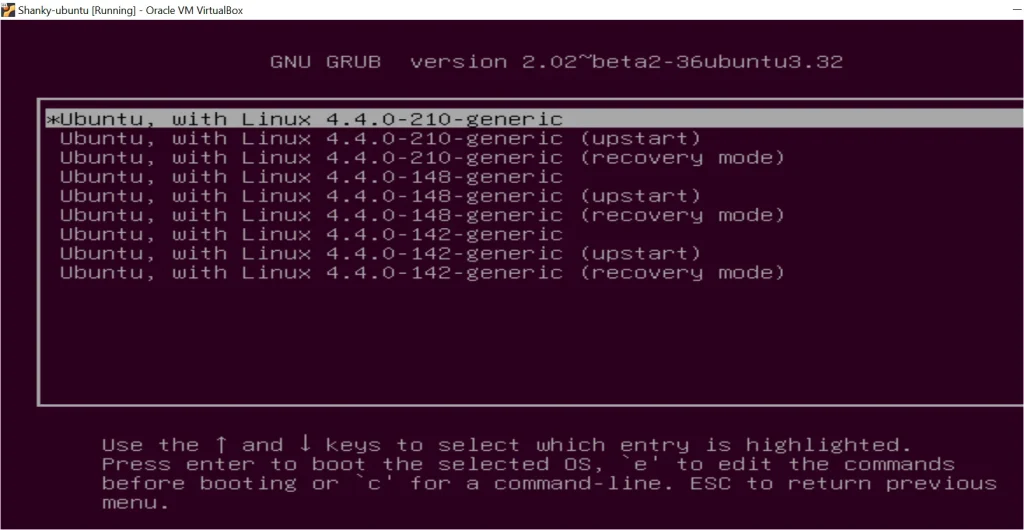
If you've ever turned on your computer and been greeted by that black-and-white GRUB menu instead of Windows, you know the frustration. Learning how to disable GRUB isn't one-size-fits-all. The right approach depends entirely on what you're trying to accomplish and how your system is set up.
GRUB (GRand Unified Bootloader) is what most Linux distributions install to manage booting. It sits between your firmware and your operating system, letting you choose which OS to load. On a UEFI system, GRUB lives in a small FAT32 partition called the EFI System Partition, typically 100 to 500 MB in size.
Understanding that structure is the key to removing or disabling it cleanly.
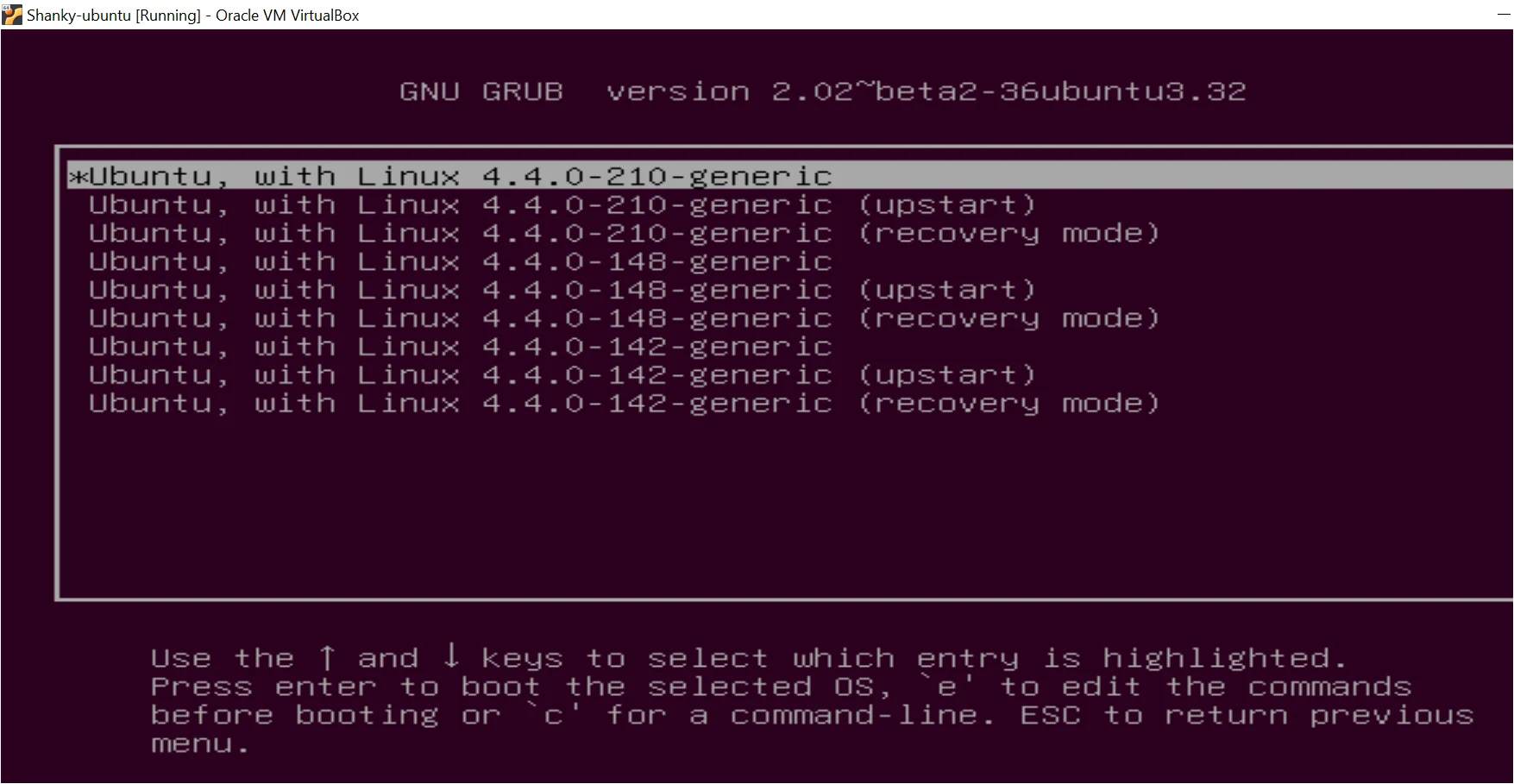
Image source: Bing (Web (fair-use with source credit))
Quick Answer
To disable GRUB, first identify whether your system uses UEFI or Legacy BIOS. Then decide if you're removing Linux entirely or just skipping the menu. For UEFI systems, use your firmware settings to set Windows Boot Manager as the default.
For full removal, rebuild the Windows BCD store and delete the GRUB files from the EFI System Partition.
Why GRUB Is Still Showing and What You Actually Want to Achieve
GRUB sticks around because it's still registered in your system's boot order. Even after removing Linux, the UEFI firmware often keeps pointing to GRUB as the primary bootloader. That's when you get the dreaded "grub rescue" prompt with an "unknown filesystem" error.
Before doing anything, clarify your goal. The steps differ significantly based on what you want.
- Removing Linux entirely: You'll delete Linux partitions, remove GRUB from the EFI System Partition, and rebuild the Windows bootloader.
- Keeping dual-boot but skipping the menu: You'll reconfigure GRUB's timeout or change the UEFI boot order so Windows loads by default.
- GRUB broke after a Windows update: You'll repair the Windows Boot Manager and potentially restore the EFI partition.
- Replacing GRUB with another bootloader: You'll install something like rEFInd or systemd-boot and remove GRUB afterward.
Each path has different risks. Removing partitions and rewriting boot records can leave your machine unbootable if something goes wrong. That's why knowing your specific situation matters more than following a generic tutorial.
How the Boot Process Actually Works (UEFI vs Legacy)
Your system boots differently depending on whether it uses UEFI or Legacy BIOS. This distinction determines every step that follows.
UEFI (Unified Extensible Firmware Interface) is the modern standard found on virtually all computers manufactured after 2012. It reads boot entries stored in NVRAM and looks for bootloader files on the EFI System Partition. Each OS gets its own folder there, like EFI\Microsoft for Windows and EFI\ubuntu for Ubuntu.
Legacy BIOS is the older method. It reads the first sector of the disk, called the Master Boot Record, which contains a small bootloader. GRUB's first stage lives in that MBR, with its configuration files in the /boot/grub directory on your Linux partition.
Here's a quick comparison:
| Feature | UEFI | Legacy BIOS |
|---|---|---|
| Partition table | GPT | MBR |
| Bootloader location | EFI System Partition (FAT32) | Master Boot Record |
| Boot entries | Stored in NVRAM | Single MBR pointer |
| Secure Boot support | Yes | No |
| Disk size limit | No practical limit | 2 TB |
As of 2026, most systems run UEFI with Secure Boot enabled. You can check your boot mode in Windows by opening System Information and looking at "BIOS Mode." If it says UEFI, you're working with NVRAM entries and the EFI partition. If it says Legacy, you're dealing with the MBR.

Image source: Wikimedia Commons / Cirosantilli2 (CC BY-SA)
What You Need to Know Before Touching Anything
Preparation prevents disasters. Bootloader changes are one of the few things that can make your computer completely unbootable in seconds.
Back up your data first. Not just documents, but consider a full disk image if you have the storage. Tools like Macrium Reflect or Windows Backup can create a recovery point.
Create a Windows recovery drive. Go to Control Panel, search for "Recovery Drive," and follow the prompts with a USB stick of at least 16 GB. This gives you a way back if the boot repair goes sideways.
Note your current boot order. Enter your UEFI firmware settings (usually by pressing F2, DEL, or F10 during startup) and take a photo of the boot order screen. That way you can restore it if needed.
Identify your boot mode. Open System Information in Windows and check "BIOS Mode." This tells you whether you're dealing with UEFI or Legacy.
Know your partition layout. Open Disk Management and note which partitions are Linux (they'll show as unrecognized file systems in Windows) and which is your EFI System Partition.
If you're working on a laptop from a major manufacturer like Dell, Lenovo, or HP, check whether the UEFI settings are password-protected or locked down. Some enterprise machines restrict boot order changes entirely.
Scenario 1: You're Removing Linux and Going Back to Windows Only
This is the most common reason people want to disable GRUB. You tried Linux, it wasn't for you, and now you want your machine back to Windows-only without that menu every time you boot.
The process has two main phases: restore the Windows bootloader, then clean up the Linux partitions.
Phase 1: Restore Windows Boot Manager
Boot into the Windows Recovery Environment. You can get there by holding Shift while clicking Restart in Windows, or by booting from your recovery drive. Once in WinRE, choose Troubleshoot, then Command Prompt.
From the elevated command prompt, run these commands in order:
bootrec /fixmbr
bootrec /fixboot
bootrec /rebuildbcd
The first command writes a new Master Boot Record. The second writes a new boot sector to the system partition. The third scans for Windows installations and rebuilds the Boot Configuration Data store.
If bootrec /fixboot gives an "access denied" error, you may need to use diskpart to assign a drive letter to the EFI System Partition first. Select the EFI partition, assign it a letter like S, then navigate to S:\EFI and delete the Linux bootloader folder (often named ubuntu, fedora, or debian).

Image source: Bing (Web (fair-use with source credit))
Phase 2: Remove Linux Partitions
Once Windows boots cleanly on its own, open Disk Management. Identify the Linux partitions, which typically show as unallocated or with an unrecognized file system. Right-click each one and select Delete Volume.
After deleting, you can extend your Windows partition into the freed space, or create a new simple volume for storage. Be careful not to delete the EFI System Partition or any recovery partitions your manufacturer created.
Phase 3: Clean Up UEFI Boot Entries
Even after removing GRUB files, the UEFI firmware might still have a boot entry pointing to it. Reboot into your UEFI settings and check the boot order. Remove any entry that references GRUB or your Linux distribution, and ensure Windows Boot Manager is first.
If the UEFI interface doesn't let you delete entries, you can use a Linux live USB with efibootmgr to remove them from NVRAM. Boot into the live session, open a terminal, and run:
sudo efibootmgr -b XXXX -B
Replace XXXX with the boot number for the GRUB entry. You can see the full list by running efibootmgr without arguments.

Image source: Bing (Web (fair-use with source credit))
Scenario 2: You Want to Keep Dual-Booting but Skip the GRUB Menu
Maybe you use both Windows and Linux regularly but hate seeing the GRUB menu every time you restart. The good news is you don't need to remove anything. You just need to tell GRUB which option to pick by default and how long to wait.
Change the Default Boot Entry
GRUB's configuration lives in /etc/default/grub on Linux. Open it with root privileges and look for the GRUB_DEFAULT line. By default it's set to 0, which means the first entry in the menu.
Change it to match whichever entry you want to boot automatically.
You can reference entries by number (0, 1, 2) or by exact menu title. For example, setting GRUB_DEFAULT="Windows Boot Manager (on /dev/sda1)" tells GRUB to select that specific entry every time.
After editing the file, run sudo update-grub to apply the changes. On Fedora or Arch, use sudo grub2-mkconfig -o /boot/grub2/grub.cfg instead.
Reduce the Timeout
The GRUB_TIMEOUT setting controls how many seconds the menu appears before GRUB boots the default entry. It defaults to 5 seconds on most distributions.
Set it to 1 for a brief flash that still lets you interrupt if needed. Set it to 0 for an immediate boot to the default. Add GRUB_TIMEOUT_STYLE=hidden to suppress the menu entirely, though you can still hold Shift during boot to reveal it.
Some people set GRUB_TIMEOUT=-1, which makes GRUB wait indefinitely for a choice. Only do this if you always want to pick manually.
Adjust UEFI Boot Order Instead
If you'd rather not touch GRUB's configuration at all, change the UEFI boot order to prioritize Windows Boot Manager. Reboot into your firmware settings, find the boot priority list, and move Windows above the GRUB entry.
The tradeoff is that you'd need to enter the UEFI settings every time you want to boot Linux. On some Lenovo and HP laptops, the F12 boot menu gives you a one-time override without changing the permanent order.
Scenario 3: GRUB Broke After a Windows Update or Partition Change
Windows updates occasionally overwrite the EFI boot entry, making GRUB disappear. Or you might have resized partitions and now GRUB can't find its configuration files. The result is usually a grub rescue> prompt with an "unknown filesystem" error.
When Windows Update Wipes GRUB
If your machine boots straight to Windows after an update, GRUB has likely been replaced as the default. Boot from a Linux live USB, mount your root partition and EFI partition, then reinstall GRUB:
sudo mount /dev/sda2 /mnt
sudo mount /dev/sda1 /mnt/boot/efi
sudo grub-install --target=x86_64-efi --efi-directory=/mnt/boot/efi --bootloader-id=ubuntu
sudo update-grub
Adjust the device names to match your layout. The --bootloader-id flag controls what name appears in your UEFI boot menu.
When You Get the GRUB Rescue Prompt
The grub rescue prompt means GRUB found its first stage but can't locate the configuration file or the partition containing it. At the prompt, type ls to list available disks and partitions. Then test each one with ls (hd0,gpt1)/ and similar commands until you find the partition with /boot/grub.
Once found, set the root and prefix:
set root=(hd0,gpt2)
set prefix=(hd0,gpt2)/boot/grub
insmod normal
normal
This should load the full GRUB menu. From there, boot into Linux and run sudo update-grub to fix the underlying issue permanently.
When Partitions Changed Under GRUB
If you've resized or moved partitions, the UUIDs GRUB references may be wrong. The blkid command in Linux shows current partition UUIDs. Compare those with the entries in /boot/grub/grub.cfg to spot mismatches.
Running sudo update-grub usually regenerates the file with correct references.
The Step-by-Step Workflow Based on Your Setup
Every situation calls for a slightly different sequence. Use this decision flow to find your path forward.
Are you running UEFI or Legacy BIOS?
If UEFI:
- Get into your firmware settings and check the current boot order.
- Decide if you want to change the boot order (easiest and safest) or remove GRUB entirely.
If Legacy BIOS:
- The MBR approach is your focus. Use
bootrec /fixmbrfrom Windows or reinstall GRUB from Linux.
Full Removal Path (UEFI)
- Boot into Windows Recovery Environment.
- Run
bootrec /fixmbr,bootrec /fixboot, andbootrec /rebuildbcd. - Assign a drive letter to the EFI System Partition and delete the Linux bootloader folder.
- If
bootrec /fixbootfails, usebcdboot C:\Windows /s S: /f UEFIafter assigning letter S to the EFI partition. - Reboot into UEFI settings and remove the Linux boot entry from NVRAM.
- Delete Linux partitions using Disk Management and reclaim the space.
Hide Menu Path (Keep GRUB, Skip the Wait)
- Boot into Linux.
- Edit
/etc/default/gruband setGRUB_TIMEOUT=1andGRUB_TIMEOUT_STYLE=hidden. - Set
GRUB_DEFAULTto your preferred entry. - Run
sudo update-grub. - Reboot and verify the menu no longer blocks startup.
UEFI Boot Order Override (No File Changes)
- Reboot and press the key for firmware settings (F2, DEL, F10, or F12 depending on manufacturer).
- Navigate to the Boot tab.
- Move "Windows Boot Manager" above any entry mentioning GRUB or your Linux distribution.
- Save and exit.
- For occasional Linux booting, use the manufacturer's boot menu (often F12) to select the Linux entry without changing the saved order.
As mentioned earlier, efibootmgr from a Linux live environment gives you fine-grained control over NVRAM entries when the firmware interface doesn't expose delete options.
Mistakes That Leave Your Machine Unbootable
Certain errors are so common that a large fraction of Linux removal forum posts stem from them. Knowing these ahead of time saves recovery headaches.
Deleting the EFI System Partition by accident. This partition contains bootloaders for every OS on the system. Removing it makes the machine unbootable regardless of which OS is installed. In Disk Management, the EFI partition is small (100 to 500 MB), FAT32 formatted, and labeled "EFI System Partition." Never delete it.
Running bootrec /fixmbr before verifying the EFI partition is intact. On UEFI systems, overwriting the MBR does nothing useful and can complicate recovery. Always check your BIOS mode first.
Editing /boot/grub/grub.cfg directly. This file is auto-generated. Any manual edits get overwritten by update-grub. Always change /etc/default/grub instead.
Forgetting that Fast Startup in Windows locks the EFI partition. If you can't mount the EFI partition from Linux, disable Fast Startup in Windows power options first. Otherwise you risk filesystem corruption.
Removing Linux partitions before fixing the bootloader. This is the classic boot failure scenario. Always restore the Windows bootloader first, verify Windows starts cleanly, then delete the Linux partitions.
Assuming one tutorial works for all distributions. Ubuntu, Fedora, Arch, and Debian handle GRUB differently. Arch uses grub-mkconfig while Ubuntu uses update-grub. Check your distribution's documentation for the exact commands.
What Can Go Wrong and How to Recover
Even with careful preparation, things can go sideways. Here's how to handle the most common failure scenarios.
Machine boots to a black screen after removing GRUB. This usually means the UEFI firmware still has a stale boot entry pointing to a deleted GRUB file. Enter your firmware settings and manually select Windows Boot Manager as a one-time boot. Then remove the broken entry permanently.
Windows won't start after bootrec /rebuildbcd says it found zero installations. The BCD store may be corrupted beyond automatic repair. Try assigning a new letter to the Windows partition and running bcdboot C:\Windows /s S: /f ALL to recreate the entire boot configuration from scratch.
Linux live USB won't boot after changing UEFI settings. Secure Boot may be blocking the live environment. Disable Secure Boot temporarily in firmware settings, boot the USB, make your changes, then re-enable it.
Accidentally deleted the EFI System Partition. This is recoverable but requires a Windows installation USB. Boot from it, open Command Prompt, and use diskpart to create a new FAT32 partition of at least 100 MB. Then run bcdboot C:\Windows /s S: /f UEFI to populate it with the Windows bootloader.
When to Call It and Get Professional Help
Some situations are beyond what command-line tools can fix. If your UEFI firmware itself is corrupted, you might need a manufacturer recovery procedure. Dell, Lenovo, and HP each have specific key combinations for BIOS recovery from a USB drive.
If you're on a work machine with BitLocker enabled, changing bootloader configuration will trigger recovery mode. You'll need the BitLocker recovery key, which your IT department should have on file. Don't attempt bootloader changes on encrypted enterprise machines without checking first.
Data recovery becomes relevant if you've already deleted partitions and need files back. Tools like TestDisk can recover lost partition tables, but success depends on whether the space has been overwritten. Stop using the drive immediately and consult a professional if the data matters.
Frequently Asked Questions
Will disabling GRUB delete my Linux files?
No. Disabling or removing GRUB only affects the bootloader. Your Linux partitions and files remain intact until you delete them separately using Disk Management or a partitioning tool.
Can I reinstall GRUB if I change my mind later?
Yes. Boot from a Linux live USB, mount your Linux partitions, and run grub-install followed by update-grub. This restores GRUB as the default bootloader without reinstalling the entire operating system.
Does Windows Update always break GRUB?
Not always, but it's common enough to expect it. Major feature updates to Windows 10 and Windows 11 sometimes reset the UEFI boot order. Keeping a Linux live USB handy lets you reinstall GRUB in a few minutes when it happens.
Is it safe to disable GRUB on a Legacy BIOS system?
Yes, but the process differs. Use bootrec /fixmbr from the Windows Recovery Environment to overwrite GRUB's MBR with the Windows bootloader. This is generally simpler than the UEFI path since there are no NVRAM entries to manage.
What if I have multiple Linux distributions installed?
Each distribution typically installs its own GRUB, but the last one installed takes over as the primary. Removing one distribution's GRUB won't affect the others as long as you don't delete the shared EFI System Partition. Reinstall GRUB from the remaining distribution after cleanup.
Final Decision Guide: Which Path Is Right for You
Your situation dictates the approach. Here's a quick reference to land on the right method.
Removing Linux entirely and returning to Windows only. Follow the full removal path from Scenario 1. Restore the Windows bootloader first, verify it works, then delete Linux partitions and reclaim the space.
Keeping both OSes but tired of the menu. Edit /etc/default/grub to hide the menu and reduce the timeout. This is the lowest-risk option and fully reversible.
GRUB broke after a Windows update. Reinstall GRUB from a Linux live USB using grub-install and update-grub. No need to touch partitions or the EFI partition structure.
Switching to a different bootloader like rEFInd or systemd-boot. Install the new bootloader first, verify it works, then remove GRUB as a secondary step. Never remove GRUB before confirming the replacement boots correctly.
Enterprise or BitLocker-encrypted machine. Contact your IT department before making any changes. Bootloader modifications can trigger encryption recovery and lock you out without the recovery key.
The safest first step in every scenario is creating a Windows recovery drive and backing up your data. With those in place, you can experiment confidently knowing you have a way back.