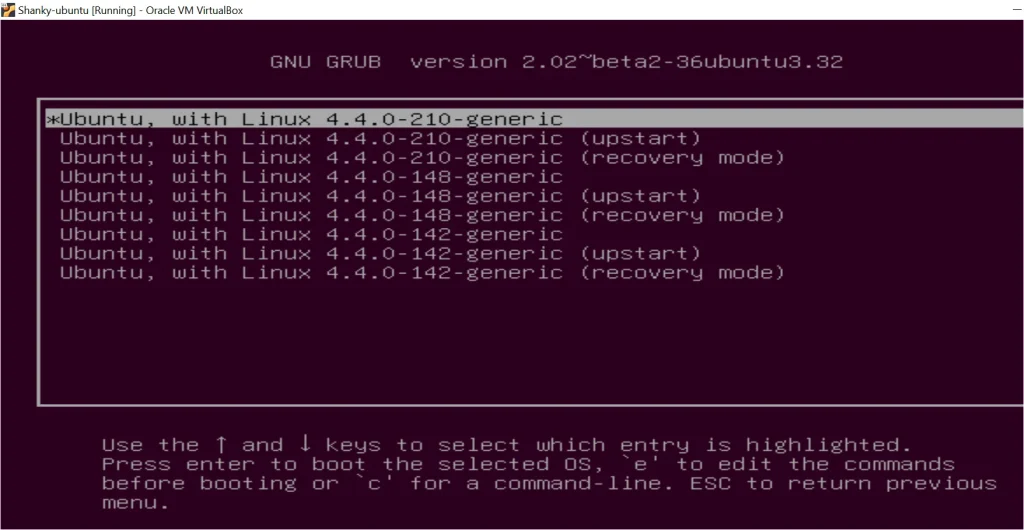
Image source: Bing (Web (fair-use with source credit))
Figuring out how to delete GRUB isn't as straightforward as running a single command. The right approach depends entirely on your firmware mode, your partition layout, and what you want your system to do after GRUB is gone. Get it wrong and you're staring at a black screen with no way to boot.
In our research across manufacturer documentation and firmware specifications, the single most common cause of failure is users not checking whether they're running UEFI or Legacy BIOS before they start. The two paths are completely different, and using the wrong one won't just fail, it can make recovery harder. As of 2026, the vast majority of systems ship with UEFI, but plenty of older machines and some budget builds still run Legacy BIOS.
Let's make sure you know which camp you're in before we touch anything.
Quick Answer
To delete GRUB, first identify whether your system uses UEFI or Legacy BIOS. On UEFI systems, use efibootmgr to remove GRUB's boot entry and delete its files from the EFI System Partition. On Legacy BIOS systems, boot into Windows Recovery and run bootrec /fixmbr to restore the Windows bootloader to the Master Boot Record.
Always verify your firmware mode before running any commands.
Problem: GRUB Won't Let Go (And Might Break Your System If You Force It)
GRUB (GRand Unified Bootloader) is the default bootloader for most Linux distributions. It takes control of your system's boot process during installation, and it doesn't always clean up gracefully when you decide to move on.
The core issue is that GRUB embeds itself at a low level. On UEFI systems, it places files in the EFI System Partition and registers itself as a boot option in your firmware's NVRAM. On Legacy BIOS systems, it writes directly to the Master Boot Record (MBR), the first sector of your drive, which is where the firmware looks for boot instructions.
Simply deleting Linux partitions from Disk Management won't remove GRUB. The bootloader code lives outside those partitions. You'll reboot to find GRUB still loading, often dropping you into a rescue shell because it can't find its configuration files anymore.
That's the scenario nobody wants.
The fix requires targeting GRUB at the level where it actually lives. That level depends on your firmware, which is why we start there.
Quick Answer: What You Actually Need to Do Depends on Two Things
Before you run a single command, you need to know two things about your system:
Are you running UEFI or Legacy BIOS? This determines which tools you'll use and which part of the disk you need to modify.
What do you want after GRUB is gone? A clean Windows install, a restored Windows bootloader on a dual-boot machine, or a switch to a different Linux bootloader like systemd-boot or rEFInd.
Here's the short version of what each scenario looks like:
| Your Situation | Firmware Mode | What You Actually Do |
|---|---|---|
| Full Windows reinstall | Either | Wipe the drive during Windows setup, GRUB goes with it |
| Dual-boot, keep Windows | UEFI | Remove GRUB's EFI entry and files, set Windows Boot Manager as default |
| Dual-boot, keep Windows | Legacy BIOS | Boot Windows Recovery, run bootrec /fixmbr |
| Switch Linux bootloader | UEFI | Install new bootloader, remove GRUB's EFI entry |
| Blank drive, no OS | Either | Wipe partition table and filesystem signatures |
If you already know your firmware mode and your goal, jump to the scenario breakdown. If not, the next section walks you through checking.
Core Explanation: Where GRUB Lives and Why That Matters
Understanding where GRUB sits on your system explains why the removal process splits into two completely different paths. It's not a single file you can just delete.
The Firmware Split: UEFI vs. Legacy BIOS
Your system firmware is the first software that runs when you power on. It initializes hardware and hands off to an operating system. There are two standards:
UEFI (Unified Extensible Firmware Interface) is the modern standard. It reads boot entries from NVRAM (non-volatile memory on your motherboard) and looks for bootloader files on a special FAT32 partition called the EFI System Partition (ESP). GRUB installs itself as a file on that partition, typically at /EFI/ubuntu/grubx64.efi or a similar path, and registers a boot entry pointing to it.
Legacy BIOS is the older standard. It reads the first 512 bytes of your drive, the Master Boot Record, and executes whatever code it finds there. GRUB writes its stage 1 boot code to that MBR, which then points to the rest of GRUB stored in the gap between the MBR and the first partition (or in a dedicated /boot partition).
The practical difference: on UEFI, GRUB is a file you can delete and an NVRAM entry you can remove. On Legacy BIOS, GRUB is code written to a raw sector of your disk, and you need to overwrite it with something else.
GRUB's Footprint on Your Drive
GRUB doesn't just live in one place. Depending on your setup, it touches:
- The EFI System Partition (UEFI): Contains the GRUB
.efiexecutable and configuration files - The Master Boot Record (Legacy BIOS): Contains GRUB's stage 1 loader code
- The BIOS boot partition (some GPT + Legacy BIOS setups): A small unformatted partition that holds GRUB's core image
- The
/bootdirectory on your Linux partition: Contains GRUB modules and configuration (this gets removed when you delete the Linux partition)
When people say "I deleted GRUB but it's still there," they usually deleted the Linux partition but left the EFI entry or MBR code intact. That's the ghost GRUB that drops you into a rescue shell.
Identify Your System Before Touching Anything
This is the step that separates a clean removal from a recovery headache. Take two minutes to check your firmware mode and partition layout.
Check Your Firmware Mode
From a running Linux system:
[ -d /sys/firmware/efi ] && echo "UEFI" || echo "Legacy BIOS"
If the directory /sys/firmware/efi exists, you're on UEFI. If it doesn't, you're on Legacy BIOS.
From Windows:
- Press
Win + R, typemsinfo32, and press Enter - Look for BIOS Mode in the System Summary
- It will say either UEFI or Legacy
From the firmware setup itself:
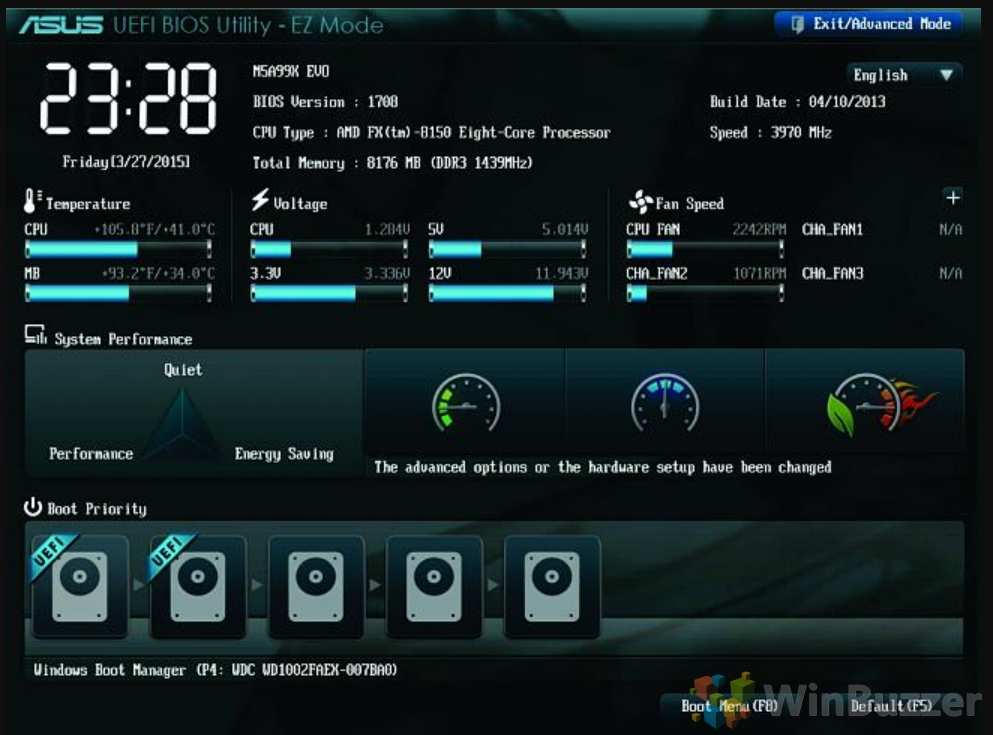
Reboot and enter your firmware settings (usually by pressing Del, F2, F10, or Esc during startup). Look for a setting labeled "Boot Mode," "UEFI/Legacy Boot," or similar. If you see UEFI options and Secure Boot settings, you're on UEFI.
Check Your Partition Layout
Knowing your partition type helps confirm what you found above and tells you what you're working with.
From Linux:
sudo fdisk -l /dev/sda
Look for "Disklabel type:" in the output. It will say either gpt (typically UEFI) or dos (typically Legacy BIOS with MBR).
From Windows:
- Press
Win + R, typediskmgmt.msc, and press Enter - Right-click your disk (not a partition, the disk itself on the left) and select Properties
- Go to the Volumes tab
- Check Partition style: it will say GPT or MBR
Here's a quick reference:
| Partition Style | Typical Firmware | GRUB Location |
|---|---|---|
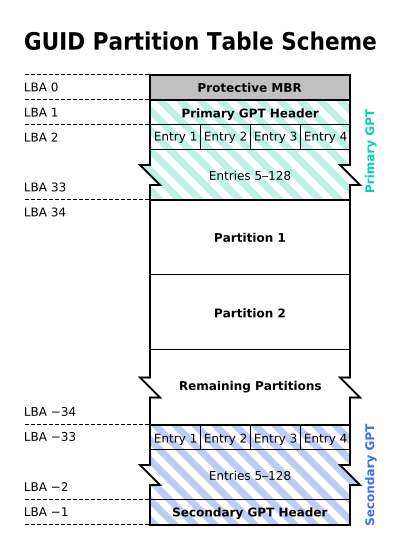
| GPT | UEFI | EFI System Partition |
| GPT | Legacy BIOS (rare) | BIOS boot partition |
| MBR (dos) | Legacy BIOS | Master Boot Record |
What Happens If You Guess Wrong
Using UEFI tools on a Legacy BIOS system won't work because there's no EFI System Partition to modify. Using Legacy BIOS tools on a UEFI system won't work because the MBR isn't what the firmware reads for boot instructions.
Worse, some commands can cause confusion. Running bootrec /fixmbr on a UEFI system with a protective MBR won't hurt anything, but it also won't fix your GRUB problem. You'll think you've solved it, reboot, and GRUB is still there because the firmware is reading the EFI partition, not the MBR.
If you're unsure, run the checks above. It takes seconds and saves you from troubleshooting a problem you created by guessing.
Scenario Breakdown: Choose Your Path
Now that you know your firmware mode and what you want afterward, here's your specific path. Find your scenario and follow it.
Scenario A: Full Windows Reinstall (Nuke Everything)
You're wiping the drive and installing Windows fresh. This is the simplest case because the Windows installer handles everything.
UEFI systems:
- Boot from your Windows installation USB
- At the "Where do you want to install Windows?" screen, press
Shift + F10to open Command Prompt - Run:
diskpart
list disk
select disk 0
clean
exit
exit
- Click Refresh in the installer, select the unallocated space, and click Next
- Windows creates its own EFI System Partition and installs the Windows Boot Manager
Legacy BIOS systems:
Same process. The clean command wipes the MBR and all partition data. Windows installs using MBR partitioning and its own bootloader.
⚠️ The
cleancommand wipes the entire disk. Every partition, every bootloader, every file. Make sure you've backed up anything you need.
Scenario B: Dual-Boot — Remove GRUB and Restore Windows Boot Manager (UEFI)
You're keeping Windows but removing Linux and GRUB. Your system uses UEFI.
Step 1: Remove GRUB's EFI boot entry
Boot into Linux one last time (you'll need it for this step). Open a terminal and run:
sudo efibootmgr -v
This lists all boot entries. You'll see something like:
Boot0000* Windows Boot Manager
Boot0001* ubuntu
Boot0002* USB HDD
Note the four-digit number next to the GRUB entry (in this case, 0001). Delete it:
sudo efibootmgr -b 0001 -B
Step 2: Delete GRUB's files from the EFI System Partition
Mount the EFI partition and remove GRUB's directory:
sudo mount /dev/sda1 /mnt
sudo rm -rf /mnt/EFI/ubuntu
sudo umount /mnt
Replace sda1 with your actual EFI partition (usually the first FAT32 partition, often 100-500 MB).
Step 3: Set Windows Boot Manager as the default
sudo efibootmgr -o 0000
Replace 0000 with the number of your Windows Boot Manager entry.
Reboot. Windows should start directly without any GRUB menu.
Scenario C: Dual-Boot — Remove GRUB and Restore Windows Boot Manager (Legacy BIOS)
You're keeping Windows but removing Linux and GRUB. Your system uses Legacy BIOS.
GRUB overwrote the Windows boot code in your MBR. You need to restore it.
Step 1: Boot from Windows recovery media
Create a Windows installation USB or recovery drive if you don't have one. Boot from it and select Repair your computer > Troubleshoot > Command Prompt.
Step 2: Restore the MBR and boot sector
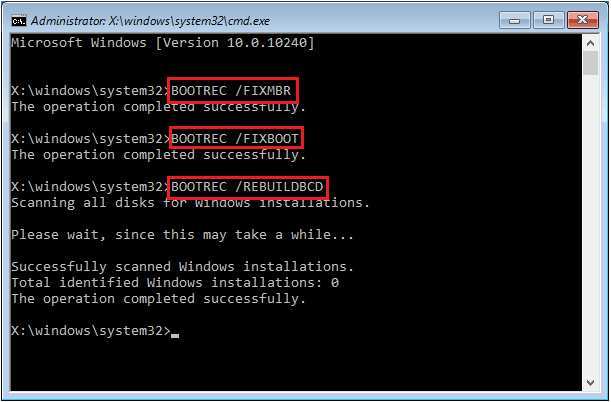
Run these commands in order:
bootrec /fixmbr
bootrec /fixboot
bootrec /rebuildbcd
/fixmbrwrites a new Windows-compatible MBR, overwriting GRUB/fixbootwrites a new boot sector to the system partition/rebuildbcdscans for Windows installations and rebuilds the Boot Configuration Data
If bootrec /fixboot returns "Access denied," try:
bootsect /nt60 sys /mbr
Step 3: Reboot and verify
Remove the recovery media and reboot. Windows should load directly. After confirming it works, you can delete the Linux partitions from Disk Management to reclaim the space.
Scenario D: Replace GRUB with a Different Linux Bootloader
You're staying on Linux but want to switch from GRUB to something else. The two most common replacements are systemd-boot (simple, UEFI-only) and rEFInd (graphical, UEFI-only, good for multi-boot).
Switching to systemd-boot:
sudo bootctl install
This installs systemd-boot to your EFI System Partition. You'll need to create boot entry files in /boot/loader/entries/ for each kernel you want to boot. Then remove GRUB's entry:
sudo efibootmgr -b XXXX -B
And optionally remove GRUB packages:
sudo apt remove grub-pc grub-efi-amd64    # Debian/Ubuntu
sudo pacman -R grub                       # Arch
Switching to rEFInd:
sudo apt install refind # Debian/Ubuntu
Or download the binary package and run:
sudo refind-install
rEFInd automatically scans for bootloaders and kernels. After installation, remove GRUB's EFI entry with efibootmgr as shown above.
Scenario E: Clean Wipe — You Just Want a Blank Drive
No OS, no bootloader, just a clean disk.
UEFI systems:
sudo wipefs -a /dev/sda
sudo sgdisk -Z /dev/sda
sudo sgdisk -og /dev/sda
Legacy BIOS systems:
sudo wipefs -a /dev/sda
sudo dd if=/dev/zero of=/dev/sda bs=512 count=1
The dd command zeros out the first sector (the MBR), removing any boot code. The wipefs command removes filesystem signatures so the disk appears completely blank to any OS.
Step-by-Step: Deleting GRUB on UEFI Systems
You've confirmed you're on UEFI and you want GRUB gone. Here's the precise sequence.
Remove the EFI Boot Entry
Boot into Linux one more time. Open a terminal and list your current boot entries:
sudo efibootmgr -v
The -v flag shows verbose output, including the file path each entry points to. Look for the entry that references grubx64.efi or shimx64.efi (the latter appears when Secure Boot is enabled). Note its four-digit boot number.
Delete it:
sudo efibootmgr -b XXXX -B
Replace XXXX with the actual number. The -B flag deletes that specific boot entry from NVRAM.
Delete GRUB Files from the EFI System Partition
Removing the NVRAM entry stops the firmware from loading GRUB, but the files are still sitting on your EFI System Partition. Clean them up.
First, identify your EFI partition:
sudo fdisk -l | grep EFI
It's usually the first FAT32 partition, around 100 to 512 MB.
Mount it and remove GRUB's directory:
sudo mount /dev/sdXY /mnt
sudo rm -rf /mnt/EFI/ubuntu
sudo umount /mnt
Replace sdXY with your actual EFI partition (for example, sda1). The directory name varies by distribution: it might be fedora, debian, arch, or manjaro instead of ubuntu.
Restore Windows Boot Manager as Default
If you're keeping Windows, make sure it's the first option in the boot order:
sudo efibootmgr -o XXXX
Replace XXXX with the Windows Boot Manager entry number. You can set multiple entries separated by commas to define the full boot order.
Reboot. Your system should go straight to Windows without showing any GRUB menu.
Step-by-Step: Deleting GRUB on Legacy BIOS Systems
On Legacy BIOS, GRUB lives in your MBR. You need to overwrite it with the Windows boot code.
Restore the Windows MBR from Recovery Media
You'll need a Windows installation USB or recovery drive. Boot from it, select your language, then go to Repair your computer > Troubleshoot > Command Prompt.
Fix Boot Sector and BCD
Run these three commands in order:
bootrec /fixmbr
bootrec /fixboot
bootrec /rebuildbcd
The first command writes a new Windows MBR, replacing GRUB's code. The second rewrites the boot sector on your system partition. The third scans for Windows installations and rebuilds the Boot Configuration Data store.
If bootrec /fixboot returns "Access denied," your system might have a partition layout that confuses the tool. Try this alternative:
bootsect /nt60 sys /mbr
This uses the older bootsect utility to write the Windows boot code and MBR in one step.
Remove Linux Partitions After Boot Is Fixed
After confirming Windows boots correctly, reclaim the disk space. Open Disk Management (diskmgmt.msc), right-click each Linux partition (ext4, swap, or unformatted), and select Delete Volume. You can then extend your Windows partition into the unallocated space or create new volumes.
If You Switch to systemd-boot or rEFInd Instead
You're not removing a bootloader, you're replacing it. The new one takes over the EFI entry, then you clean up GRUB.
Installing systemd-boot Over GRUB
systemd-boot is lightweight and UEFI-only. Install it:
sudo bootctl install
Create a boot entry in /boot/loader/entries/. A typical entry looks like:
title   Linux
linux   /vmlinuz-linux
initrd  /initramfs-linux.img
options root=UUID=your-root-partition-uuid rw
Generate the entry automatically on Arch with kernel-install. On other distros, you may need to write it manually or use a helper script.
Installing rEFInd Over GRInd
rEFInd auto-detects kernels and bootloaders, so it needs less manual configuration:
sudo apt install refind # Debian/Ubuntu
Or download the binary and run sudo refind-install.
rEFInd scans your EFI partition and boot options at startup, presenting a graphical menu. It often picks up your Linux kernels without any configuration files.
Cleaning Up Old GRUB Entries After Switching
After your new bootloader is working, remove GRUB's EFI entry:
sudo efibootmgr -b XXXX -B
Then delete GRUB's files from the EFI partition as described in the UEFI section above. Finally, remove GRUB packages to free space and prevent it from being reinstalled by accident:
sudo apt remove grub-pc grub-efi-amd64    # Debian/Ubuntu
sudo pacman -R grub                       # Arch
sudo dnf remove grub2-efi grub2-tools     # Fedora
Mistakes That Leave You With an Unbootable Machine
These are the errors we see most often. Avoid them and you'll be fine.
Deleting the Entire EFI System Partition
The EFI System Partition holds bootloaders for every OS on your system. If you delete the whole partition instead of just GRUB's folder inside it, you'll lose the Windows Boot Manager too. Your system won't have anything to boot from.
Always delete only the distribution-specific subdirectory, like /EFI/ubuntu or /EFI/fedora. Leave the Microsoft folder and the Boot folder alone.
Deleting Wrong EFI Boot Entries
Running efibootmgr -b XXXX -B with the wrong number can remove your Windows Boot Manager entry or your USB boot option. Always run efibootmgr -v first and verify the entry you're deleting points to GRUB's .efi file.
If you accidentally delete the wrong entry, you can often recreate it from Linux by reinstalling the correct bootloader, or from Windows by running bcdboot C:\Windows.
Forgetting to Check Firmware Mode First
This is the root cause of most failed removal attempts. Users run bootrec commands on a UEFI system and wonder why GRUB is still there. Or they try efibootmgr on a Legacy BIOS machine and get "EFI variables are not supported."
Check your mode first. Every time. It takes ten seconds.
Not Having Recovery Media Ready
Before you modify anything, have a Windows recovery USB and a Linux live USB on hand. If something goes wrong, you can boot from either one to fix the problem. Creating these takes five minutes and can save you hours of frustration.
Ignoring Windows Fast Startup / Hibernation Locks
If Windows was hibernated (Fast Startup does this by default), the NTFS partition will be locked. You won't be able to mount it from Linux to modify the EFI partition contents. Disable Fast Startup in Windows power settings before shutting down, or hold Shift while clicking Shut Down to perform a full shutdown.
Quick Decision Guide: Which Method Is Right for You?
| If You're Doing This | And Your Firmware Is | Use This Method |
|---|---|---|
| Clean Windows install | Either | diskpart clean during Windows setup |
| Remove Linux, keep Windows | UEFI | efibootmgr + delete GRUB EFI files |
| Remove Linux, keep Windows | Legacy BIOS | bootrec /fixmbr from Windows Recovery |
| Switch to systemd-boot | UEFI | bootctl install, then remove GRUB entry |
| Switch to rEFInd | UEFI | refind-install, then remove GRUB entry |
| Wipe everything | Either | wipefs + sgdisk -Z |
Frequently Asked Questions
How do I know if I'm running UEFI or Legacy BIOS?
Run msinfo32 in Windows and check "BIOS Mode." From Linux, test if /sys/firmware/efi exists. If it does, you're on UEFI.
Will removing GRUB delete my Windows files?
No. Removing GRUB only touches the bootloader entry and its files on the EFI System Partition or MBR. Your Windows installation and data remain intact.
What if bootrec /fixboot gives "access denied"?
Try bootsect /nt60 sys /mbr as an alternative. If that fails, your disk might be GPT-formatted on a Legacy BIOS system, which requires a BIOS boot partition.
Can I delete GRUB from within Windows?
Not directly. Windows doesn't have native tools to modify EFI boot entries or mount the EFI partition easily. You can use third-party tools like EasyUEFI, or boot into Linux for the cleanest removal.
I deleted GRUB and now I get a black screen. What now?
Boot from a Windows recovery USB and run bootrec /fixmbr and bootrec /fixboot. If you're on UEFI, you may need to enter your firmware settings and manually select the Windows Boot Manager as the boot option.
Is it safe to delete the EFI System Partition?
No. That partition contains bootloaders for all installed operating systems. Delete only the GRUB-specific subdirectory inside it, not the partition itself.
What's the difference between diskpart clean and clean all?
clean removes partition and filesystem metadata, making the disk appear blank. clean all writes zeroes to every sector, which is much slower but ensures no data is recoverable. Use clean for normal reinstalls. Use clean all when you need to securely erase sensitive data.
Expert Tips / Pro Advice
Skip the reinstall if you're just annoyed with GRUB showing up. On UEFI, you can set the boot timeout to one second and make Windows the default, effectively hiding GRUB without removing it.
Back up your NVRAM boot entries before making changes. With efibootmgr, there's no built-in backup, but you can capture the output to a file: efibootmgr -v > boot_backup.txt. If something goes wrong, you can recreate entries manually using the saved information.
For enterprise environments with BitLocker enabled, suspend BitLocker protection before modifying the EFI partition. Otherwise, BitLocker may trigger recovery mode on the next boot because it detected a change in the boot chain.
Safety / Legal / Compliance
BitLocker recovery keys must be accessible before any bootloader modification. If you don't have the key stored in your Microsoft account or a physical copy, retrieve it first.
Windows license activation is typically tied to your motherboard hardware, but major firmware changes can occasionally trigger reactivation. Keep your product key or Microsoft account link handy.
Secure Boot keys (PK, KEK, db) are stored in firmware and should never be deleted unless you're intentionally reconfiguring Secure Boot from scratch.
Maintenance / Long-Term Optimization
After removing GRUB, periodically check your EFI partition for stale entries. Some Linux distributions leave behind boot entries even after uninstallation. Run efibootmgr -v every few months and clean up anything you don't recognize.
If you're reusing the drive in another machine, a full wipe with diskpart clean or wipefs plus sgdisk -Z ensures no bootloader remnants confuse the new system's firmware.
Keep that recovery USB in a drawer. It takes up almost no space, and it's the fastest way back if a future update or disk operation goes sideways.
Final Recommendation
There's no single "delete GRUB" command because the right approach depends on your firmware and your goal. The decision tree is straightforward: check your firmware mode, decide what you want after removal, then follow the matching path.
For most people in 2026, that means UEFI with efibootmgr and a quick cleanup of the EFI partition. For older machines, it's a trip to Windows Recovery and bootrec /fixmbr. Either way, the process takes under ten minutes if you've done the prep work.
The one thing that separates a smooth removal from a recovery project is checking your firmware mode before you start. Everything else is just following the steps.